![RichardsonLogo-3.png]](https://ithelpdesk.richardsoncap.com/hs-fs/hubfs/RichardsonLogo-3.png?height=39&name=RichardsonLogo-3.png)
Locating Orders in the 5th Attempt
In queue mode, filter to show orders in the state of Waiting Art Approval and at the reminder level of Design Proof #5. You should also be filtering the show orders that are either in your queue or your team's queue.
Locating Orders with No Attempts
If we sent art outside of the system, reminders will not be sent. Also, if we stopped reminders on the order, we may not have ever circled back. At this time, we do not have a filter for No Reminders, so you have to dig a bit.
Click the column header for Last Art Sent to bring the oldest Art Sent dates to the top, and let's look into those also!
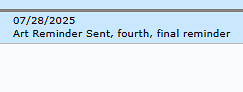
In this example, art was last sent on 7/28/25, and the customer received the final art proof approval reminder email:
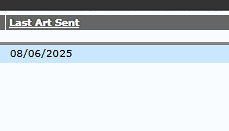
If no reminder emails have been sent, there will be a Last Art Sent date but no additional text:
Following Up on 5th Attempts
IMPORTANT: Be careful to ensure you are not following up on parts that are actually approved. Just because part 2 is in Waiting Art Approval 5th attempt, doesn't mean part 1 is.
1. If using HubSpot, go to the ticket and compose an email to the contact on the order (you could also compose the email from the inbox, but it's nice to keep it all in one place on the ticket!)
2. Send your email to the contacts on the order, and CC the sales rep. For emailed orders, I would suggest double-checking the PO to ensure we have the correct Ordered By contact selected, and there are no additional contacts that were supposed to receive the proof.
3. Make sure your from email is correct (i.e., if you are emailing about orders for Team Sales, make sure you are emailing from Team Sales!)
4. Insert the HubSpot Template called 5th Attempt.
Hello,
We hope this email finds you well! We are reaching out regarding your PO# ____. Our records indicate that we have not yet received approval on your design proof(s), and we are unable to proceed with production until the artwork is approved.
Linked here are your proofs that are still awaiting approval. Please ensure that you approve or revise all parts of the order by following each the below. If your order has multiple parts waiting approval, please click Next Proof Approval to go to review the next part.
Copy and paste link to Approve link from the history here and delete this line.
Please note - if we do not receive approval or a revision request by ___ at 8 AM PST, the order will be cancelled and can be re-submitted at your convenience.
Let us know if you have any questions - and thank you for choosing Richardson!
5. Revise the subject line to add the PO # and the Sales Order #, and add the PO # to the body of the email as well.
6. Find the link to the art and copy and paste them into the email.
1. In EWO, go to the History tab on the order and locate the most recent art approval email.
2. Click the Email/Message button.
3. Click the Approval link to make sure the link is still live (i.e. that they don't show that a revision was requested that we missed. If the customer fills out the link to mark the order as approved and then they revoke their approval, we will need a new link.). You will also need to make sure you are on the correct part.
7. Provide the customer with an expected timeline (we generally give 1 week from the follow up date).
Noting your Follow Ups and Following Up on your Follow Ups
In CS Notes in EWO, note that you have followed up on the art, and provide the date that the order will be canceled. Do this on all parts (use the Confirmation page.)
You can also add a red note to all parts in Design Notes (<b style='color:red;'>TEXT HERE</b>) so the status is visible in queue mode.
Find a system that will help you go back and follow through with cancelling your order on the date that was noted. Tasks in HubSpot are a great option!