![RichardsonLogo-3.png]](https://ithelpdesk.richardsoncap.com/hs-fs/hubfs/RichardsonLogo-3.png?height=39&name=RichardsonLogo-3.png)
We will continue to add additional templates as we see fit for common questions and inquiries.
It is important that you still read the entirety of your email to ensure it is address all of the questions that the customer is asking. Additional information may need to be added or some lines may need to be removed to ensure that we are servicing the customer with a one-and-done email when possible.
Using Templates in Email Responses
1. When responding to or composing an email, first input your recipients email address, and then select Insert > Templates
2. Search for or select the template you would like to use and click on it
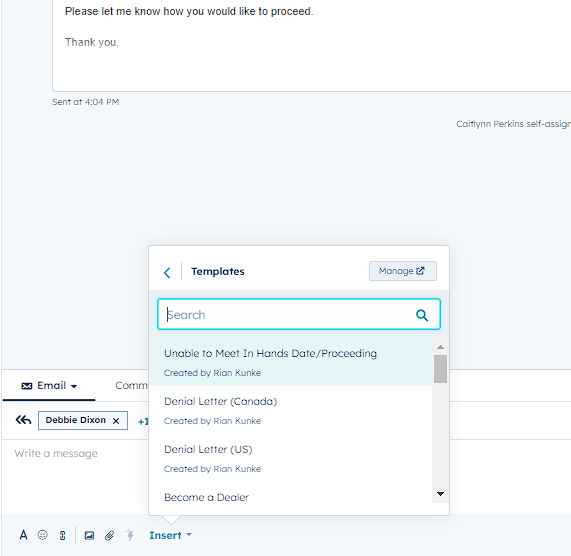
IMPORTANT NOTE: Anything Halo-specific will start with Halo and will be saved in the Halo templates folder. Click Manage to view all Templates and Folders.
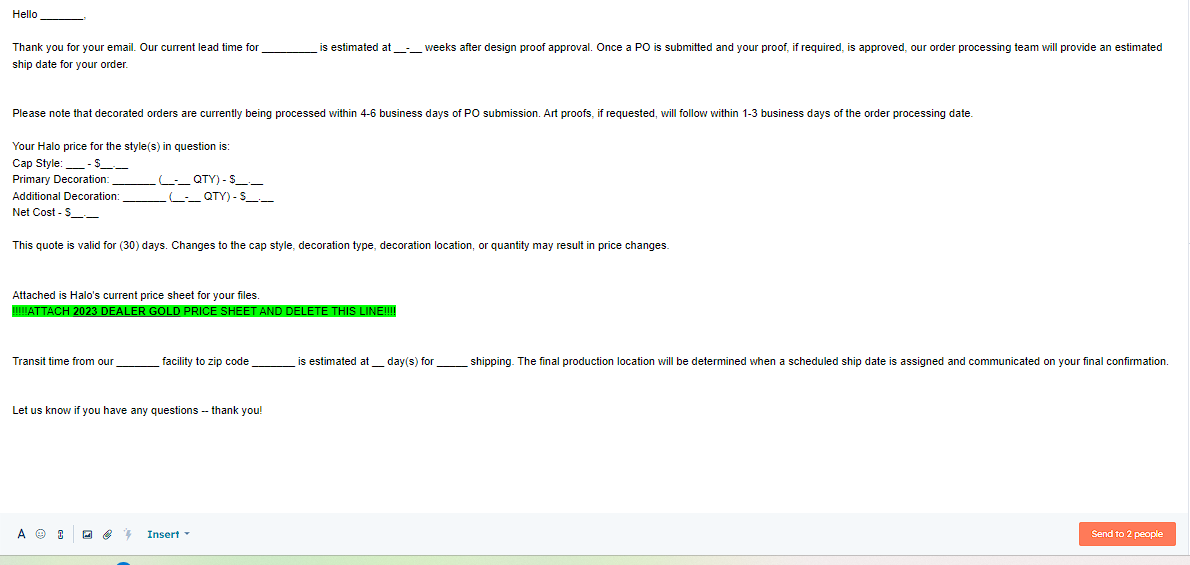
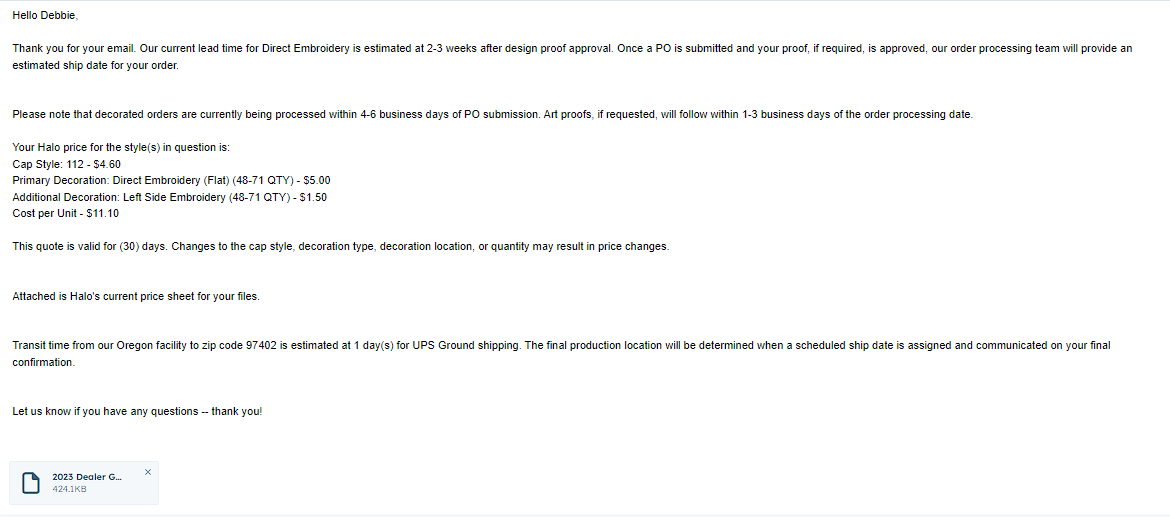
3. Anything with a blank space/underline will need to be replaced with relevant information. Double clicking on the underlined segment should highlight the entire line and allow you to replace it. You may need to add a space after the text that you insert.
Before
After
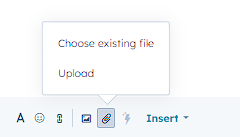
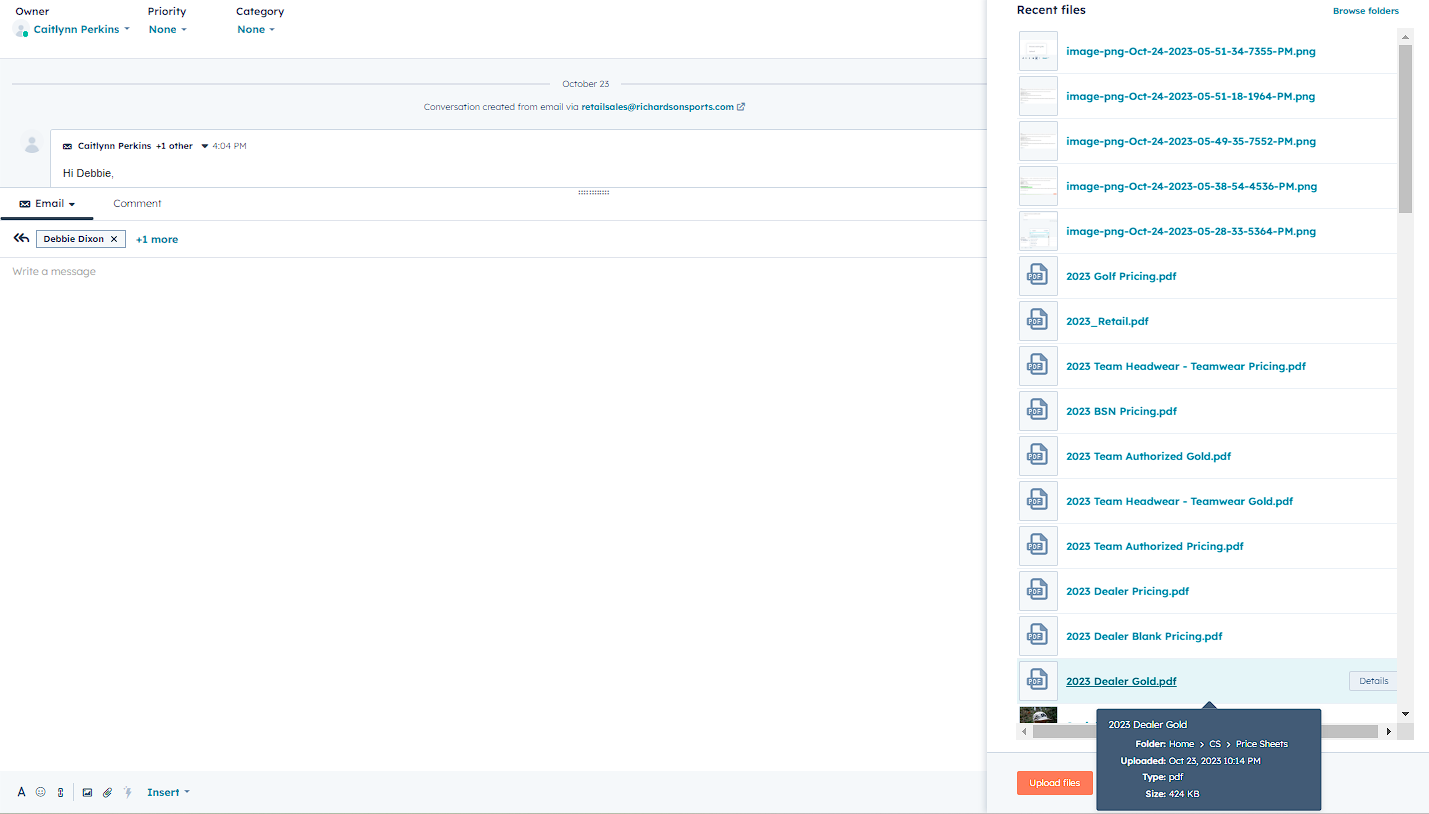
4. Delete anything highlighted in GREEN and attach the appropriate file by clicking the paperclip, and selecting Choose Existing. All current Richardson price sheets have been added to the existing files on HubSpot.
Creating a Template
IMPORTANT: All templates must be approved by a manager prior to adding to the Hubspot Template library
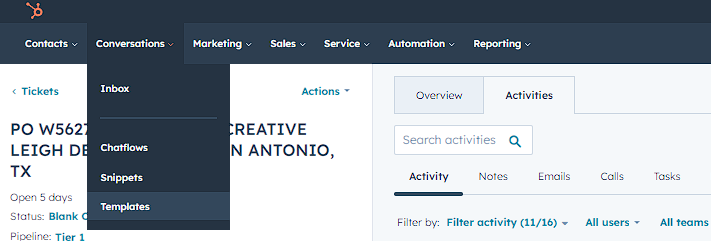
1. To view and add Templates, click Conversation > Templates
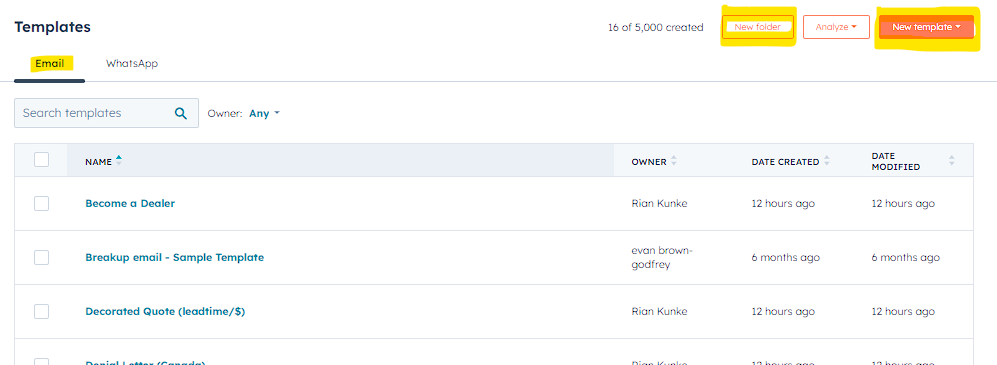
2. Similar templates can be grouped in a folder (i.e. all responses for Halo). To create a new folder, select New Folder at the top of the Email tab.
To create a new template, select New Template > From Scratch. Templates can be moved to a folder at a later point if you see fit by selecting Actions > Move on the Template
You can also duplicate and edit an existing template by selection Actions > Clone on the Template