![RichardsonLogo-3.png]](https://ithelpdesk.richardsoncap.com/hs-fs/hubfs/RichardsonLogo-3.png?height=39&name=RichardsonLogo-3.png)
Please watch the Video in Paylocity (if it doesn't work, try logging into Paylocity in another tab and then opening the link): Training Video from Paylocity
Manual Punch
If you forget to click Stop Lunch, your Time Card will still say Stop Lunch when you go to Clock Out, and you will need to submit a Manual Punch
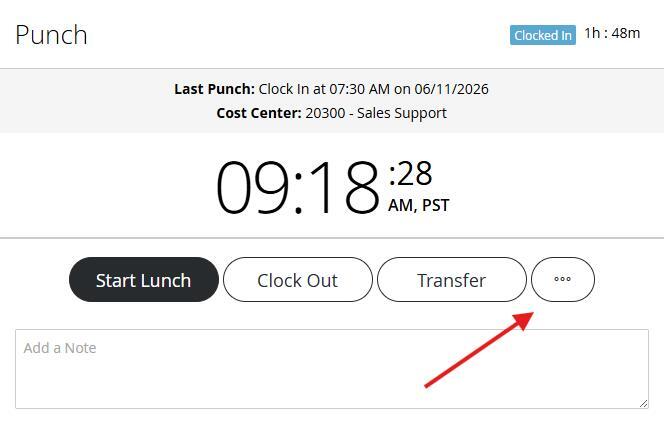
1. Click the 3 dots to the right of Transfer
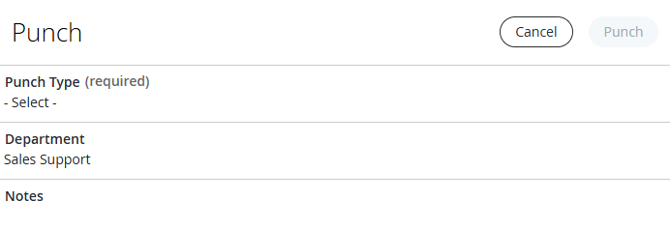
2. Select the appropriate Punch Type and click Punch
You can then request to Add a Punch to End Your Lunch on the Activity Window (see below).
Adding a Missed Punch
1. Go to Time and Labor from the menu on the left panel.
2. Under Activity, select Add a Punch
3. Fill in the date, time and punch type
** Make sure you are selecting PM and not AM**
Correcting a Punch
Didn't realize you clicked End Lunch at 4 PM? You can Request to re-label that punch as an End Lunch on the Activity Window, and you can punch out again to submit your Clock Out Punch
1. On the same Time and Labor Screen under Activity, you will see Recent Activity
2. Click the 3 dots next to the punch you would like to correct to request your correction