![RichardsonLogo-3.png]](https://ithelpdesk.richardsoncap.com/hs-fs/hubfs/RichardsonLogo-3.png?height=39&name=RichardsonLogo-3.png)
The History tab shows the order of operations for a specific order. It helps us research what happened, answer customer questions, and understand where an order is in the process.
It is especially useful because emails sent through EWO are now version controlled. The email links in the Note column show a snapshot of the order and proofs exactly as they looked when they were sent. That makes it easier for both us and the customer to track proof versions over time.
At first, the History tab can look overwhelming. It becomes much easier to use once you break it down into parts.
Key columns to know
- EWS User: The login that made the update to the order
- Action: Routes and emails sent through EWO
- Does not currently show changes made to dec blocks or notes
- Order State: The route of the order at the time of the action
- Note: Backend information and links to emails sent through EWO, including:
- Initial Confirmation
- Proofs sent for art approval
- Final Confirmation
- Delayed Confirmation, if applicable
How to read the History tab
- The latest update appears at the top
- To see when the order first started processing, look at the bottom line first
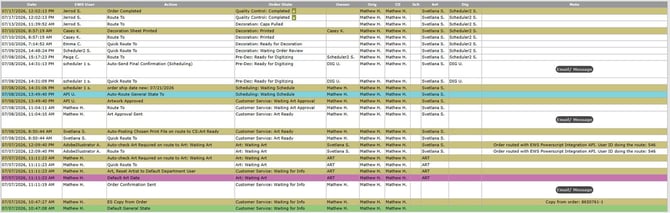
Example order: 8945968 (search in EWO to read the history more easily, or right click the image to open in a new tab)
1. Order created
- Added to EWO on 7/7/26 at 10:47 AM
- Added by Mathew H.
- Default Order State for a new order: Waiting for Info
2. Initial Confirmation sent
- Sent at 11:11 AM on 7/7/26
- Viewable through the link in the Note column
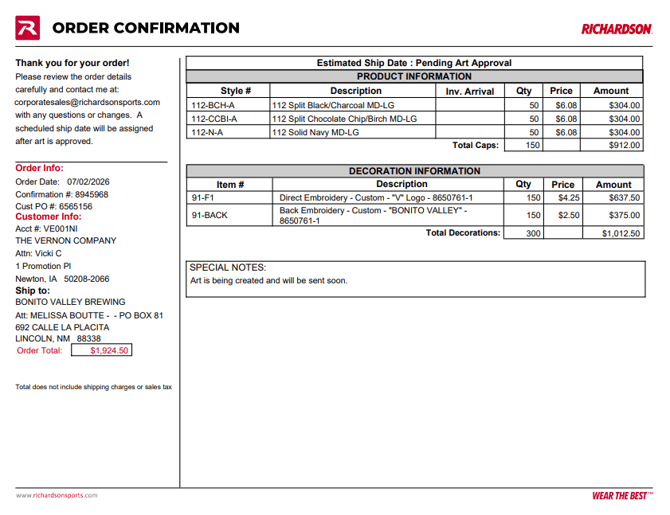
The Initial Confirmation includes:
- Ship-to location
- Cap styles
- Decoration types
- Quantities
- Order total, not including shipping or tax
- Estimated incoming inventory dates, if applicable, under Inv. Arrival
Important:
The Initial Confirmation does not include the estimated ship date. At this stage, it will say:
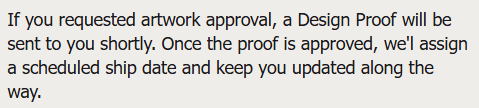
Estimated Ship Date: Pending Art Approval
The screenshot below is taken from the body of the confirmation email.
3. Order routed to Art
After the confirmation email was sent, the order moved to:
Art: Waiting Art
This means:
- The order is now owned by the Art department
- It will be assigned to an artist
- Once the proof was completed and added, it was routed to Customer Service: Art Ready by the artist
You can also see this on the Detail page under Domestic Art.
When CS sent the proof for approval through EWO on 7/8/26, the order automatically routed to:
Customer Service: Waiting Art Approval
4. Artwork approved
The Action column shows:
Artwork Approved
This happened about 2.5 hours after the proof was sent (thank you customer!)
When a customer approves the proof through the emailed link, the order automatically routes to:
Scheduling: Waiting Schedule
At that point, it enters the queue for an estimated ship date based on:
- Decoration lead time
- Warehouse capacity
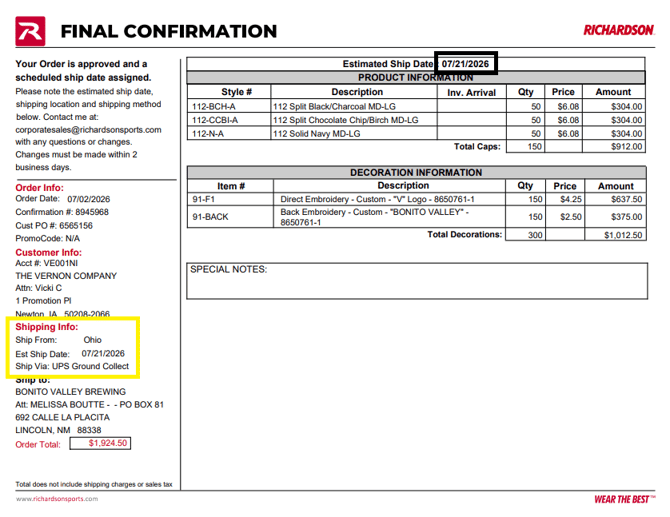
5. Estimated ship date assigned
The estimated ship date was assigned shortly after the order entered Scheduling.
You can find that date:
- In the Action column
- In the top banner of the order
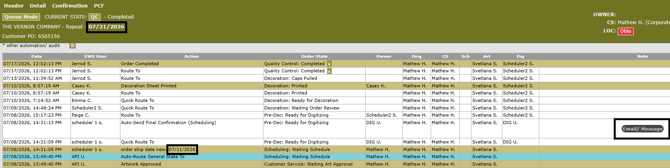
The Final Confirmation can be viewed from the Note tab.
The Final Confirmation includes:
- Estimated ship date
- Warehouse
- Freight method
These details were not included on the Initial Confirmation.
6. Pre-Dec and production routing
After the Final Confirmation is sent, the order is routed to Pre-Dec for digitizing of the embroidery file.
Once digitizing is complete, the order continues through the remaining production routes.
For patch orders:
The History tab will also show an additional email sent through EWO from the Pre-Dec team to the patch vendor. That email includes:
- Patch details
- Which warehouse the patches should be sent to
This email is sent to the patch vendor only, not the customer.
7. Production milestones
For this order, once digitizing was complete, it was reviewed by the Order Review team before being routed to:
Decoration: Ready for Decoration

Here’s what the later routes mean:
- Decoration: Printed
Order paperwork has been printed and given to production - Decoration: Caps Pulled
Caps have physically been pulled from the shelves for decoration - Quality Control: Complete
The order is complete on the production floor
Quality Control is also known as QC. This is the step where caps are blocked and steamed to smooth out imperfections created during embroidery or decoration.
Important reminder
Quality Control: Complete does not mean the order has shipped.
After production is finished, the order is handed off to the warehouse team for shipment.
To confirm shipment:
- Check SAP
- Confirm the order is closed
- Access the tracking number there
Final takeaway
Learning how to read the EWO History tab is an important skill. The better you understand it, the better you can research orders, answer customer questions, and support your team.