![RichardsonLogo-3.png]](https://ithelpdesk.richardsoncap.com/hs-fs/hubfs/RichardsonLogo-3.png?height=39&name=RichardsonLogo-3.png)
Adding Association Labels to Sales Rep Contacts
In this example, Mack Gaskin's Sub Rep Amanda Roberson is already associated as a Sub Rep and we will be adding his other Sub Rep, Wilson.
1. Click Add on the Contacts (found on the right side panel, or on the Overview tab)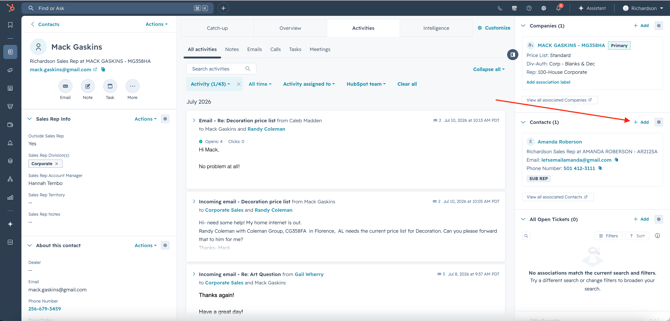
2. Find the contact you are looking to associate, and click Next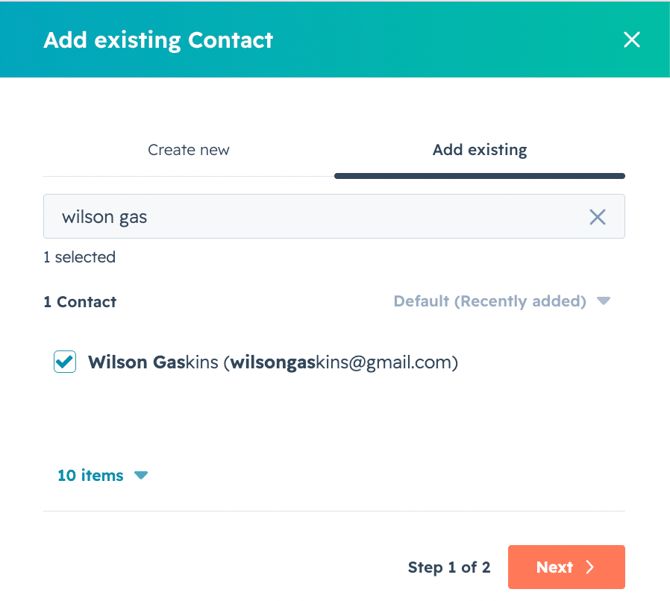
3. Click +Add association label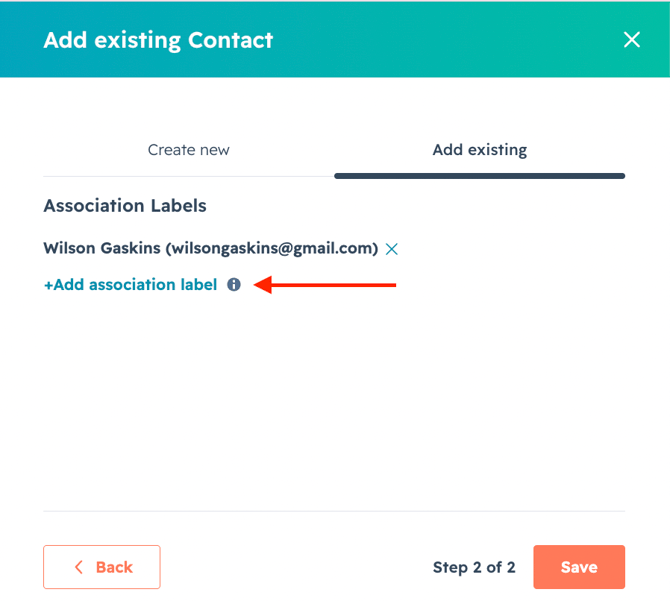
4. Locate the label for the contact you are associating
In this example, Wilson Gaskins is the Sub Rep I am associating with the Main Rep, Mack Gaskins, so I will select Sub Rep (Paired with Main Rep).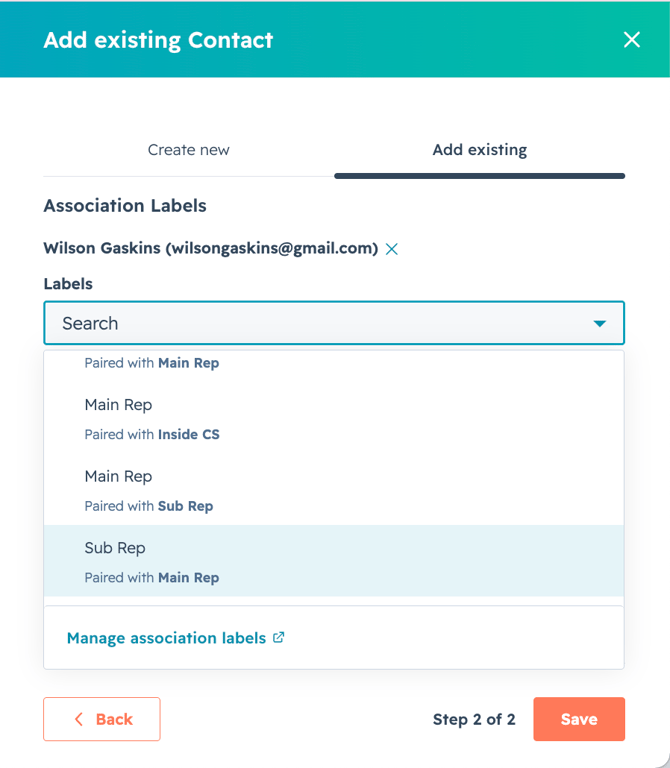
Once you make your selection, you have a handy preview to confirm your selection (there are also directions for editing Association Labels below!). If all looks good, click Save.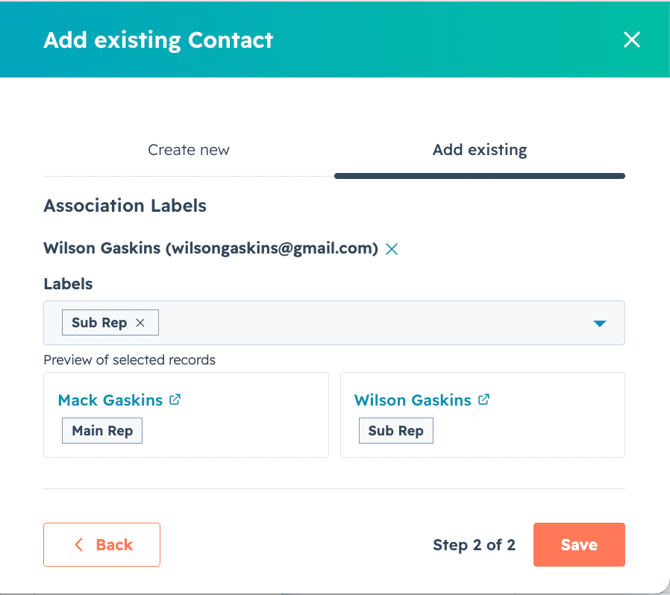
You will now see Association Labels on the Contact cards. 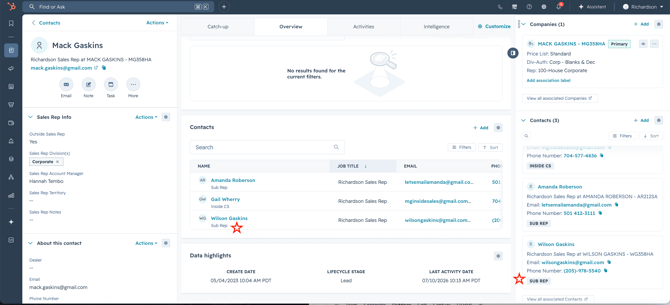
This also gives visibility in the inboxes.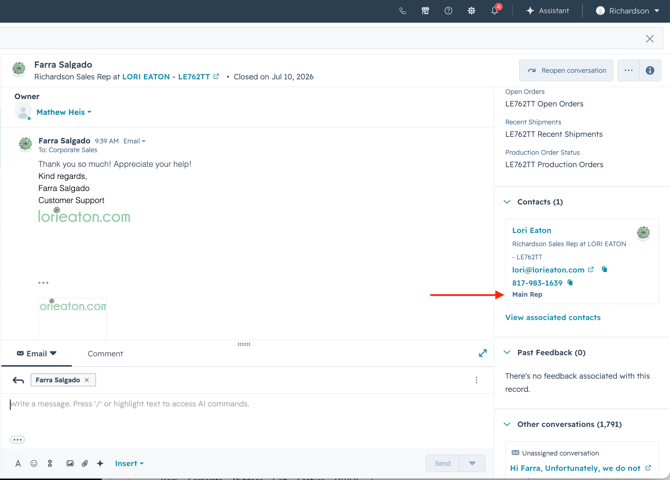
Editing Association Labels
To edit or update a contact's Association Label, click the 3 dots on the Contact card and click Edit Association Labels.
Select the revised association label, or delete the existing label and click Update.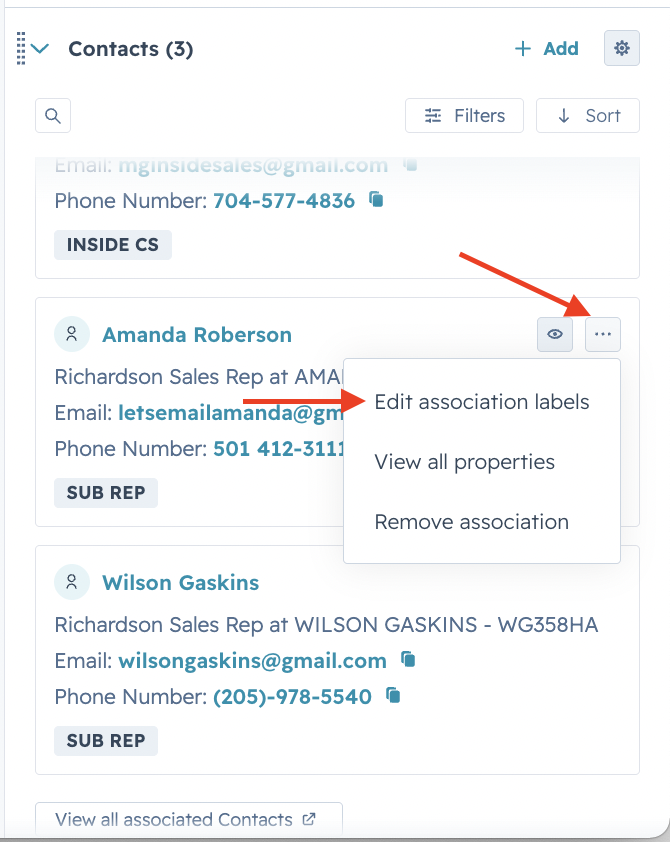
For new or updated association label options, see Admin or IT