![RichardsonLogo-3.png]](https://ithelpdesk.richardsoncap.com/hs-fs/hubfs/RichardsonLogo-3.png?height=39&name=RichardsonLogo-3.png)
It is recommended that you only have the one, applicable window open in SAP, otherwise, your changes may revert back when you close and relaunch SAP the next time. Meaning, if you want to adjust the UDFs for Sales Quote, have all other SAP windows closed except a new Sales Quote when making the update.
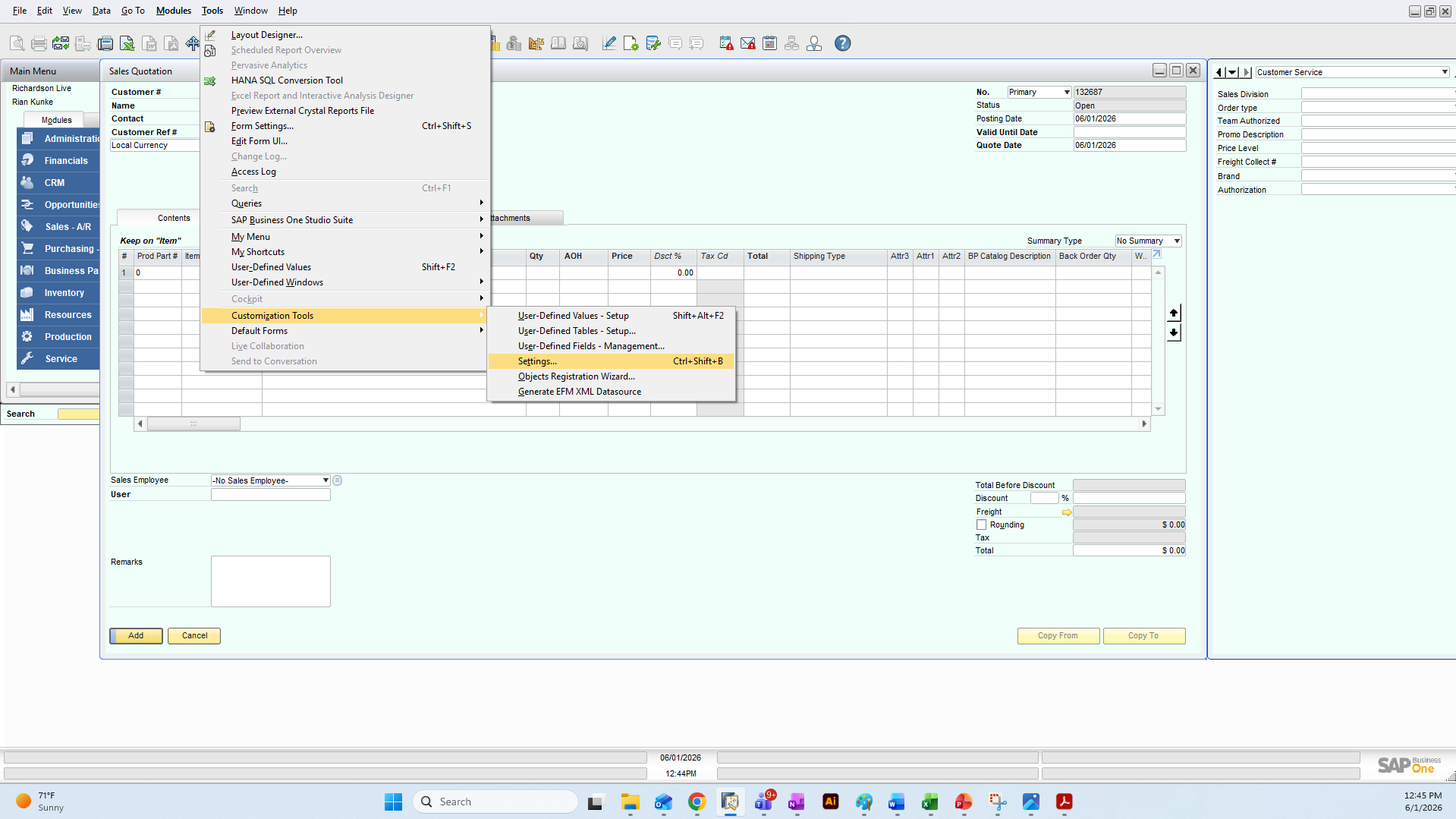
1. With your window open, go to Tools > Customization Tools > Settings to open the UDF Settings
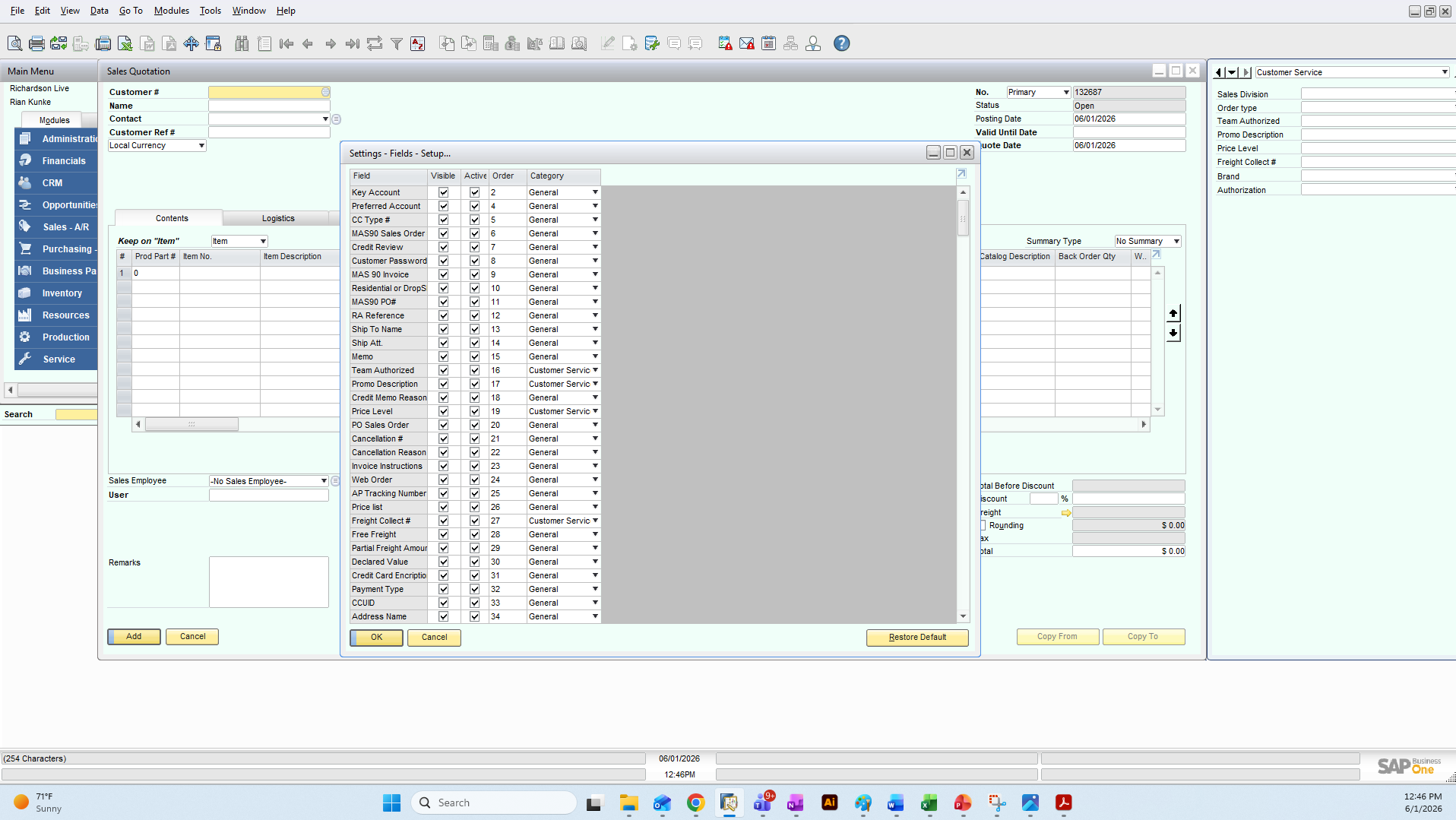
2. Double click on the Field Column header to sort the UDFs alphaetically - this is the easiest way to find the UDF you are looking for.
3. In order for a UDF to be visible, check the box in the Visible column if needed. You may also need to change the Category from General to Customer Service.
The number in the Order column indicates where it will fall in order for your UDFs. It doesn't have to be perfectly numbered (aka it doesn't have to be 1, 2, 3, 4. It could be 1, 25, 26, 98, 101, etc). . If you want something at the bottom of your UDFs, input a high number. If you want it at the top, input 1. You can then double click on Order to sort that column numerically and adjust further.
On your UDFs, there is a dropdown at the top. This is the Category, so you will want to ensure you have the correct category selected on the Sales Quote/Sales Order/BP to display your changes etc
4. Click OK and your UDFs should now be updated