![RichardsonLogo-3.png]](https://ithelpdesk.richardsoncap.com/hs-fs/hubfs/RichardsonLogo-3.png?height=39&name=RichardsonLogo-3.png)
When there is artwork on file from a previous order that includes the exact caps, decoration, and thread colors, we should be adding this proof ourselves and not routing to Waiting Art or Waiting Art Production.
It is important that we check these proofs for accuracy prior to adding the art and sending it to the customer or routing the order to be scheduled.
When you add art to an order, EWO generates the order specific information that you see in the top right corner of the proof (order number, customer name, etc). The art that the customer attaches to their new order likely already has this order information from their previous order, so we need to locate the proof from the server to avoid layering new order information on top of the old existing information.
Copy From
Step 1: After filling out your order details, use the Copy From Order function in EWO and input the repeat order number in Source Order. Click Find.
Step 2: Once the repeat order details populate, scroll down and check the box for All Domestic Art. Click Copy Fields.
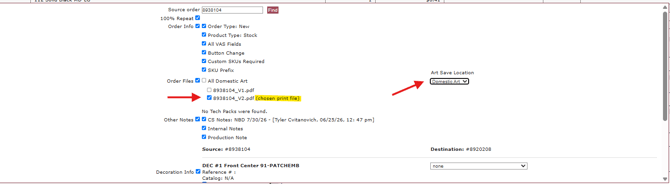
TIP: If your order is a Repeat w/ Changes or is Referencing another order, use Copy From but change the Art Save Location from Domestic Art to Customer Art.
Version Control
Proofs must end in _V# - this is important to ensure that the link we send to customers is updated each time we send a new proof.
Using Copy From will automatically name your copied proof as _V1 if it is the first domestic art proof on your order.
If you had originally sent the customer V1, but they request a revision that makes their order an Exact Repeat of a previous order, Copy From will set your proof as V2 so the version # is always the next consecutive number.